Installation
AnyLearning OSS runs on Windows, macOS and Linux. Everything it needs is in the download (Python, PyTorch and the pretrained weights included), so it has nothing to fetch after installation and works on a machine with no network.
Step 1: Download AnyLearning
- Visit the AnyLearning download page (opens in a new tab).
- Download the build for your operating system.
- Wait for the file to finish downloading. It is a few gigabytes, because the models ship with it.
Step 2: Install AnyLearning
For Windows
- For GPU training, install the NVIDIA driver (opens in a new tab) for your card first.
- Run the downloaded
AnyLearning-Setup-*.exe. - Follow the installer. It offers a Desktop shortcut and a Start menu entry.
- Launch AnyLearning from the shortcut.
For macOS
- Open the downloaded
.dmg. - Drag AnyLearning into your Applications folder.
- Eject the disk image.
macOS blocks applications that are not from the App Store, and the first launch may report the app as damaged. To clear that, open Terminal and run:
xattr -cr /Applications/AnyLearning.app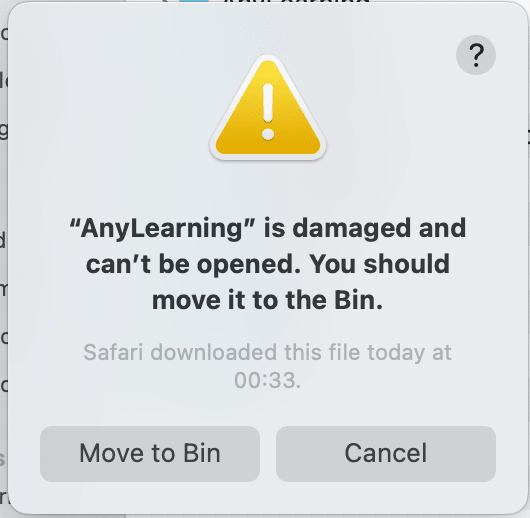
Then launch it again, and choose Open if macOS asks you to confirm.
For Linux
- For GPU training, install the NVIDIA driver from your distribution.
- Extract the archive:
tar -xzf AnyLearning-*-linux-x86_64.tar.gz- Run it:
./AnyLearning/AnyLearningThe archive is self-contained and can live anywhere you can write to: no system packages are installed and nothing needs root.
Step 3: Start a project
Open AnyLearning and create a project. The open-source edition includes local training and does not require an account, license key, or online activation.
Where your data is kept
Projects, images, annotations, databases and trained models are written to
~/anylearning-data (C:\Users\<you>\anylearning-data on Windows). Installing
a new version does not touch it, and uninstalling does not delete it.
System requirements
| Windows | 10 or later, 64-bit |
| macOS | 11 or later, Apple Silicon or Intel |
| Linux | glibc 2.31 or later (Ubuntu 20.04+), 64-bit |
| Memory | 8 GB, 16 GB for training larger models |
| Disk | 10 GB for the application, plus room for your datasets |
| GPU (optional) | NVIDIA with CUDA, on Windows and Linux |
Training works without a GPU: it is slower, not unavailable. On macOS, training runs on the CPU: Apple's GPU backend is not used yet.
Troubleshooting
- macOS says the app is damaged: run the
xattrcommand in Step 2. - Blank window on first launch: close and reopen the app. The frontend is unpacked on the first run, which takes a few seconds.
- Training ends immediately with "No model found in training output": your batch size is larger than the number of images in a split. Lower it, or add images.
For anything else, visit our contact page (opens in a new tab) or email support@nrl.ai.